
Video
The Video module embeds a video from either a HubSpot-hosted video player or a YouTube URL, chosen by a single source switch that conditionally shows only the relevant fields. It is well suited to adding a responsive, aspect-ratio-controlled video to a page, whether you rely on HubSpots native player settings or a simple YouTube link.
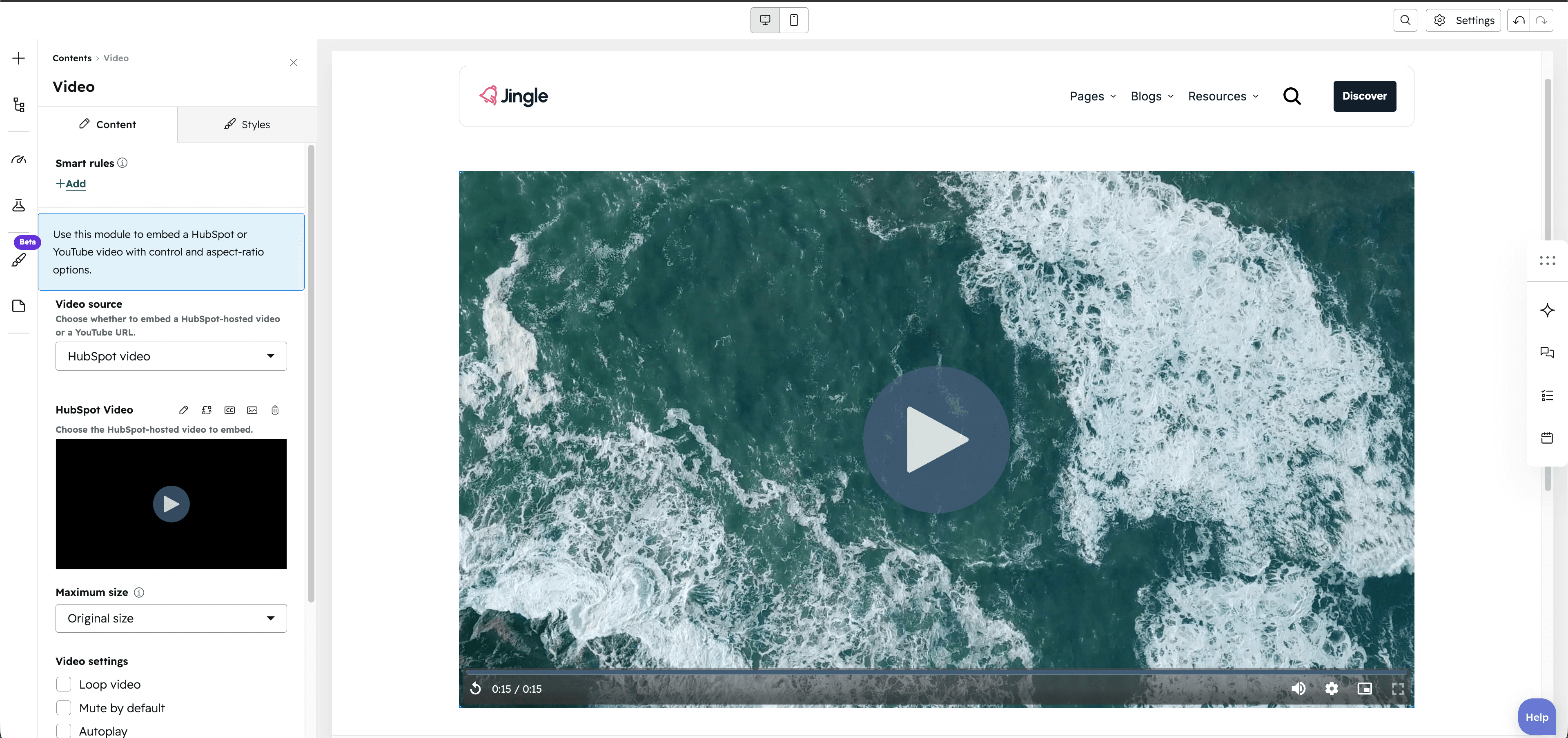
Video source
The Video source select chooses the embed type: HubSpot video (default) or YouTube URL. It controls which of the fields below are shown.
YouTube URL
The YouTube URL field, shown when Video source is YouTube URL, takes the external YouTube watch URL of the video to embed.
Show controls
The Show controls toggle (off by default), shown for a YouTube source, displays the player controls on the video.
Enable autoplay
The Enable autoplay toggle (on by default), shown for a YouTube source, starts the video automatically when it loads.
HubSpot Video
The HubSpot Video field, shown when the source is HubSpot video, embeds a HubSpot-hosted video and exposes the players own advanced options such as autoplay, controls, loop and conversion settings.
Video format
The Video format group sets the aspect ratio per screen size through Mobile display, Tablet display and Desktop display selects; each offers Default (default), 1 / 1, 4 / 3, 3 / 4, 16 / 9 and 9 / 16.
Vertical alignment
The Vertical alignment group sets vertical alignment per screen size through Mobile display, Tablet display and Desktop display selects; each offers Top (default), Center, Bottom, Space around, Space between and Stretch.
Horizontal alignment
The Horizontal alignment group sets horizontal alignment per screen size through Mobile display, Tablet display and Desktop display selects; each offers Left (default), Center, Right, Space around, Space between and Stretch.
Text alignment
The Text alignment group sets text alignment per screen size through Mobile display, Tablet display and Desktop display selects; each offers Left (default), Center and Right.
Animation settings
The Animation settings group controls the scroll-into-view animation. Animation type chooses the entrance effect — None (default), Fade in, Fade up, Fade down, Fade left, Fade right, Zoom in, Zoom out, Slide up, Slide down, Slide left or Slide right. When a type other than None is chosen, Duration (0.1 to 3s, step 0.1, default 0.6s), Easing (Smooth (power1.out), Default (power2.out) [default], Snappy (power3.out), Very snappy (expo.out), Sine (sine.out), Overshoot (back.out), Springy (elastic.out), Bouncy (bounce.out) or Linear (none)) and Delay (0 to 5s, step 0.05, default 0s) appear, and Travel distance (0 to 200px, step 5, default 30px) is shown for slide and directional fade animations.
Mobile order
The Mobile order slider ranges from -5 to 5 (step 1); lower numbers appear first, letting you shift the module up or down relative to sibling modules on mobile screens.